Using OKCARE
OKCARE discovers and manages ASIC and GPU miners on a LAN. It includes IP management, status scanning, upgrades and maintenance, pool testing, and encrypted proxy tools. This guide defines the current features and supported models; it will be updated if a software upgrade changes them.
OKCARE supports 64-bit Windows 7/8/10/11. The computer must have .NET Framework 4.5.2 or later, be on the same LAN as the miners, and maintain a stable network connection.
Run OKCARE
- Download the OKCARE v5.0 installer.
- Run the installer on Windows, complete installation, and open OKCARE
 .
- The first launch requires QR-code sign-in. In the signed-in OKMINER App, go to
Home, tapScan in the upper-right corner, and scan the QR code in OKCARE. When
Allow sign-in?appears, tapAllow. Return to OKCARE to open the feature page.
Sign Out of OKCARE
Use either method:
- Click the sign-out button in OKCARE.
- If you cannot access the computer, open and sign in to the OKMINER App, then go to
Me>User Center>Security>Device Management, find the OKCARE device, and remove it.
After removal, the device must scan a QR code to sign in again. Always sign out after using a shared computer.
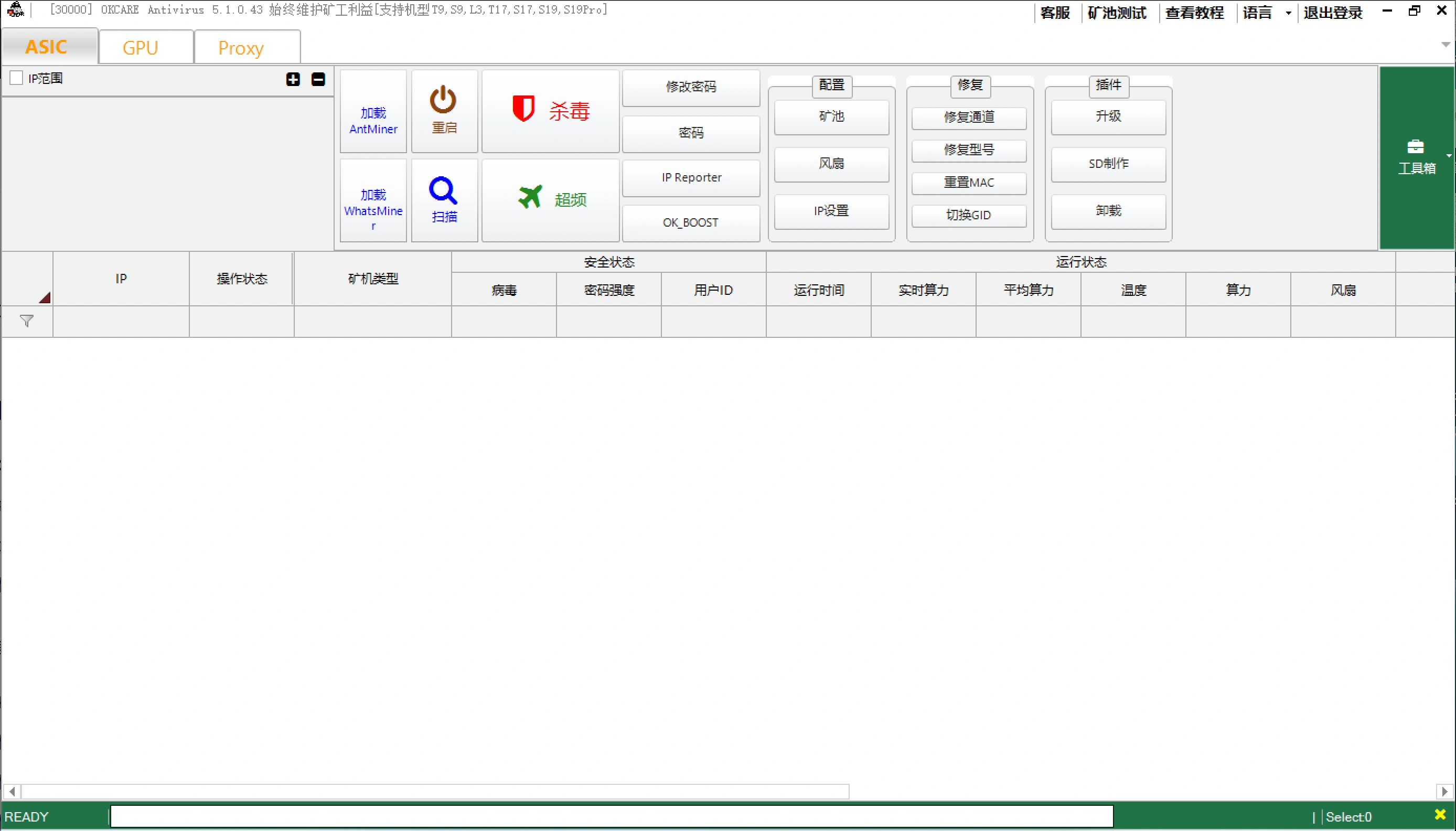
OKCARE Features
ASIC Module
Load and manage ASIC miners, set IP addresses, switch GIDs, remove viruses, upgrade firmware, create SD cards, and connect miners to pools. See ASIC Module Tutorial.
GPU Module
Load and manage GPU miners, set IP addresses, switch GIDs, create bootable USB drives, upgrade, copy systems, and update drivers. See GPU Module Tutorial.
Encrypted Proxy Module
Run an encrypted proxy in OKCARE, configure pool addresses, and enable automatic startup. See Encrypted Proxy Module Tutorial.
Pool Address Test
Use this feature to check pool-address connectivity and latency, and to copy an available pool address:
- Click
Pool Testin OKCARE. - Click
Testin the dialog. OKCARE tests every listed address and displaysStatusandLatency. - Wait for the
Test Completemessage. - To copy an address, select its row and click
Copy Pool.
Interpret the results as follows:
- Connectable status: The current computer network can reach that address and port.
- Low, stable latency: Prefer this endpoint.
- All addresses fail: Check the computer network, DNS, firewall, or upstream restrictions, then test again.
Pool Test reflects connectivity only at the time of the test and does not guarantee a continuously stable miner connection. If a miner still cannot connect, verify its network, address, port, and mining configuration.